Help & How-To Guide
Diamond Coach v113 · Updated September 10, 2026 · Privacy · Terms
1. Getting started
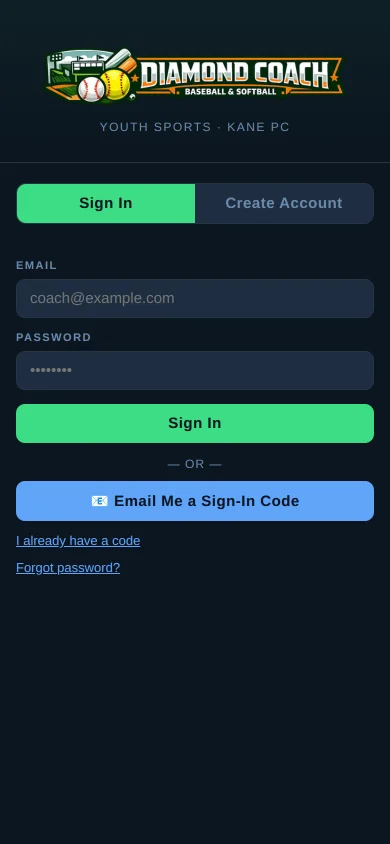
Diamond Coach is for adults. Coaches and parents have accounts; players do not.
Create your team
The first time you sign in as a coach you are asked for the team name, sport (softball or baseball), age group (6U to 18U), and season (for example "Fall 2026"). The age group matters: it sets the league rules the rotation starts from and which drills the planner offers. You can run more than one team and switch between them from your account screen.
Put it on your phone
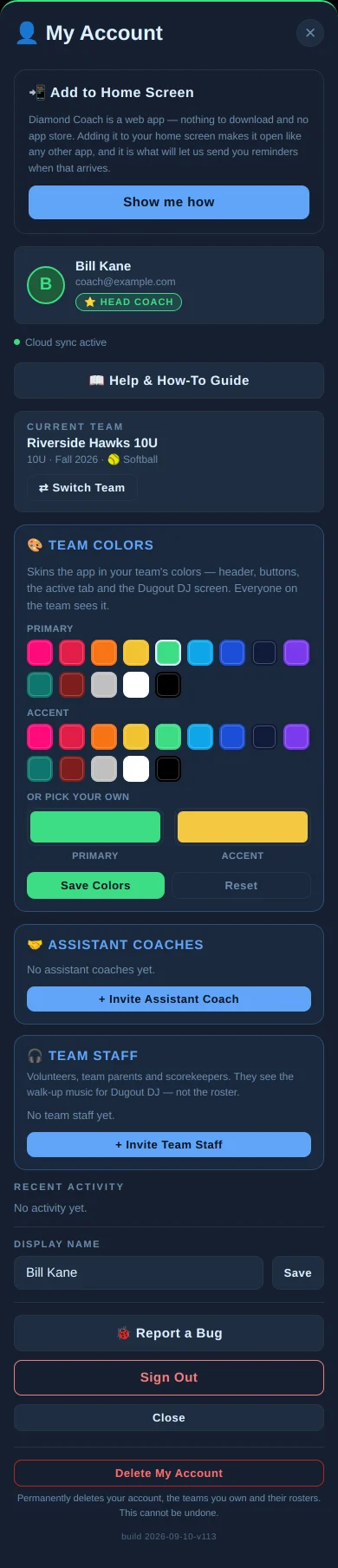
Diamond Coach is a web app. There is nothing to download from an app store. On your phone, open the app in Safari (iPhone) or Chrome (Android), tap the share or menu button, and choose Add to Home Screen. It then opens full-screen like any other app. Your account screen has a Show me how button with the exact taps for your phone.
Add an assistant coach
Open your account (the round button at the top right), scroll to Assistant Coaches, and enter their email. They get an invite link. An assistant can do almost everything you can: roster, lineups, practice plans, schedule, chat. Deleting things, removing players, and unlinking a parent from their child stay with the head coach.
2. Roster
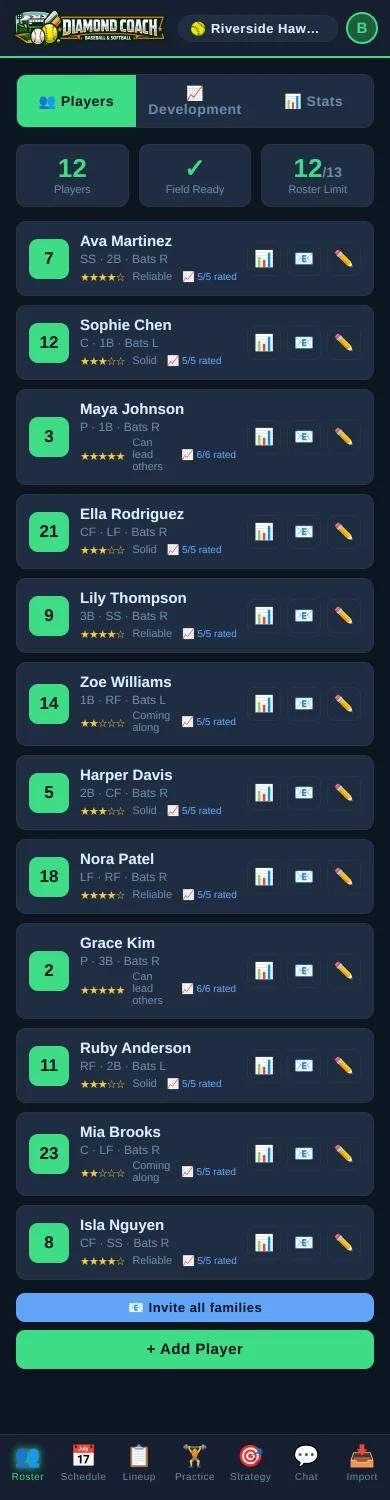
The counter at the top shows players, whether you can field a full team, and your roster limit.
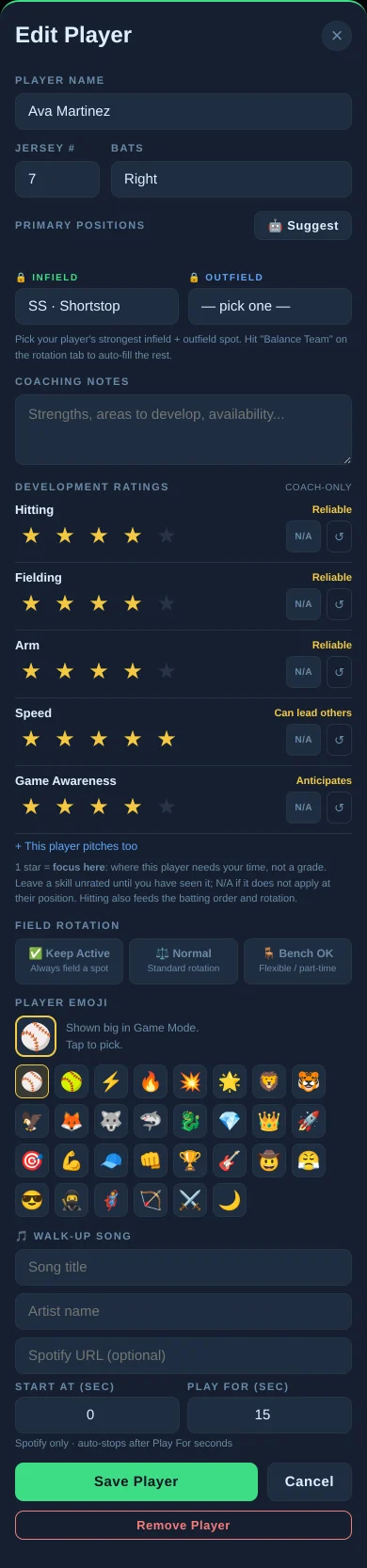
Lower on the sheet: development ratings (next section), the rotation preference (Keep Active, Normal, Bench OK for a part-time player), an emoji shown big in Game Mode, and a walk-up song for the Dugout DJ.
Invite a parent
- Tap ✉️ on the player's card.
- Enter the parent's email, or copy the invite link and text it to them.
- The parent creates an account with that email and the child is linked automatically. Two parents can both claim the same child.
Until a parent accepts, the card shows Parent invite waiting. If the email never arrives, ask them to check junk for a message from app@diamondcoach.app.
Import a roster
Skip the typing: go to Import and drop in a GameChanger CSV. Names and numbers come from a roster export; a stats export brings the numbers too. See Import & share.
3. Development ratings
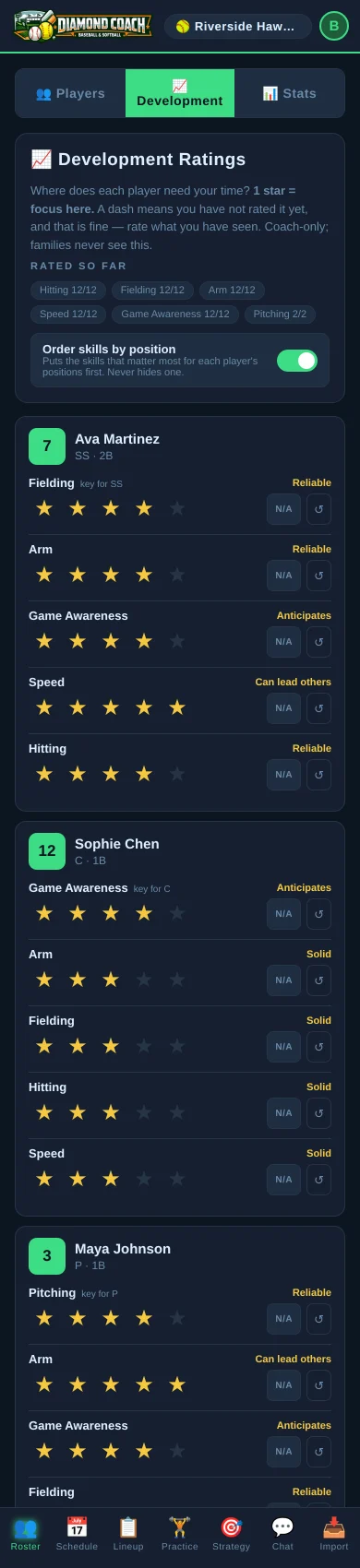
1 star means "focus here," not "weak." The word next to the stars says what the rating means (Coming along, Solid, Reliable, Can lead others). A dash means you have not rated it yet, and that is fine. N/A means it does not apply to that player's position.
Ratings are coach-only. Families never see them, and nothing in the app ranks players against each other.
Turn on Order skills by position to put the skills that matter most for each player's positions first. Hitting also feeds the batting order and the rotation, so keep it current.
4. GameChanger stats
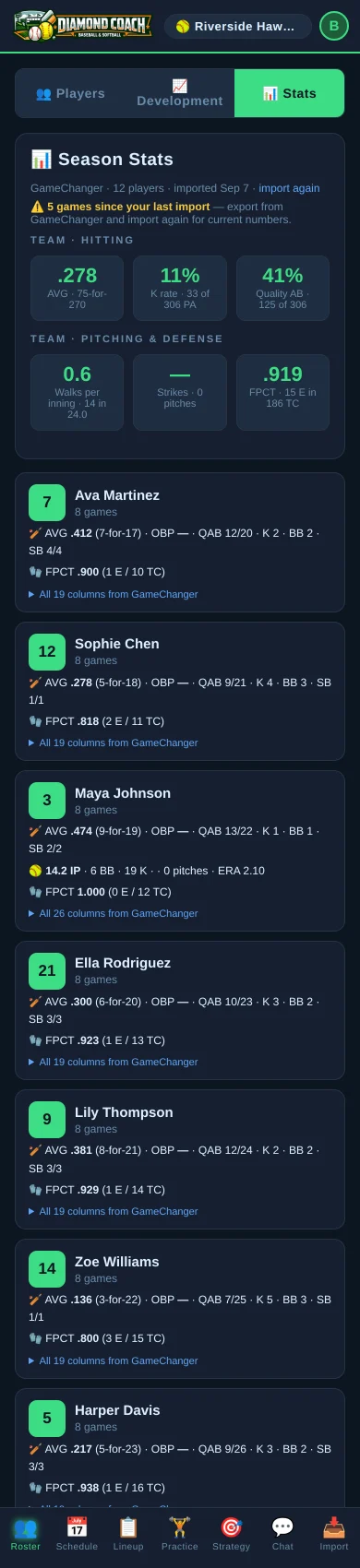
How to get stats in
- In GameChanger: Team → Stats → Export CSV (a roster export from Team → Roster → Export also works, for names and numbers only).
- In Diamond Coach: Import → CSV File, then drop the file in or tap to choose it.
- Check the preview, then import. Existing players are matched by jersey number and name.
Where the numbers point
On the practice planner, a strip called Your GameChanger stats point at suggests focus areas with a reason for each ("K rate 31%, league-typical is under 20%"). It suggests; you decide. AI Read on the Stats tab writes a short team read and a note per pitcher and catcher. It sends jersey numbers only, never names.
Close out the season
When the season ends, the head coach taps Close Out the Season on the Stats tab. Each linked player's latest numbers are copied into the family's own record, where the parent sees them under Season History. Playoffs or a late game? Import again and close again: the record updates, it does not duplicate.
5. Lineup and field rotation
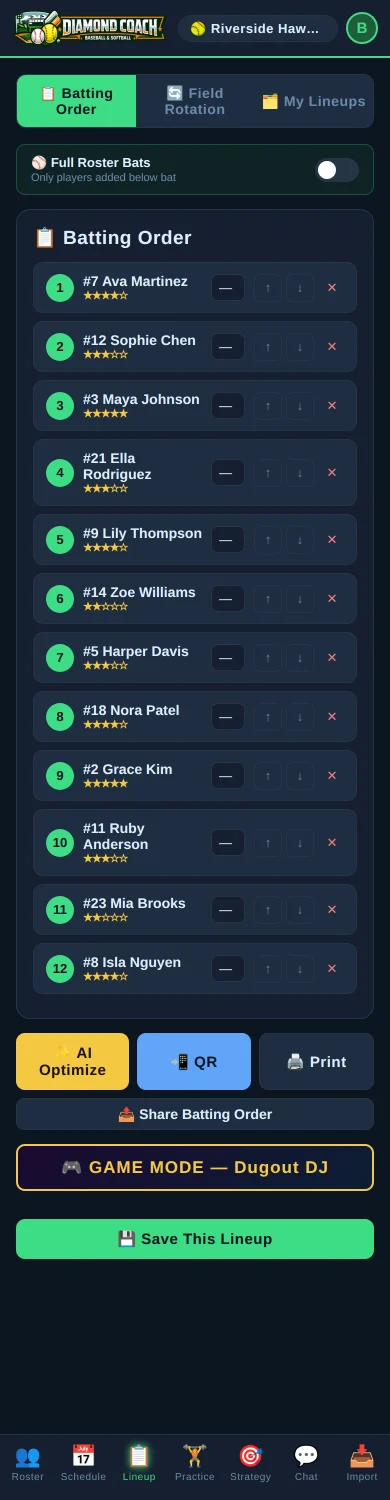
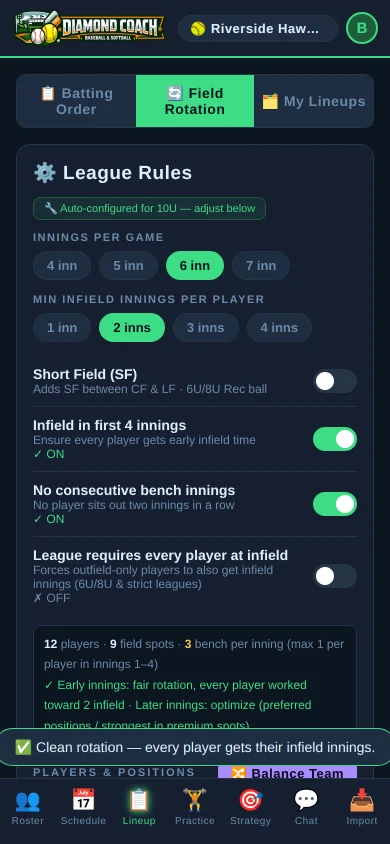
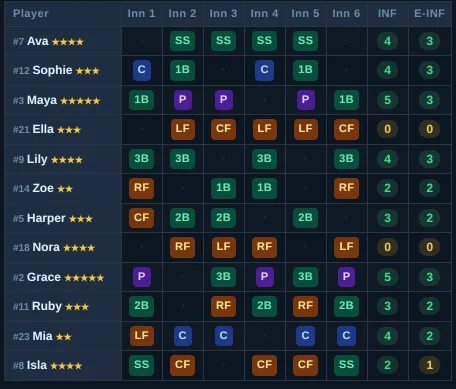
Generate builds the grid: every player, every inning, INF and E-INF (early infield) counts on the right. Early innings rotate fairly; later innings lean on preferred positions. The banner under the rules tells you whether the rotation is clean or which rule could not be met. Tap any cell to change it by hand; Balance Team auto-fills positions from your ratings.
AI Review reads the finished grid and points out anything a league official or a parent would notice. Export saves a CSV; Share sends the grid as text. My Lineups keeps saved lineups per game.
Game Mode and the Dugout DJ
🎮 Game Mode turns the lineup into a big, tap-to-advance dugout screen: who is up, who is on deck, who plays where this inning, and each player's walk-up song (Spotify link, start time, play-for seconds). Team parents, scorekeepers, and volunteers can be invited as staff to run the Dugout DJ without seeing the roster.
6. Practice planner
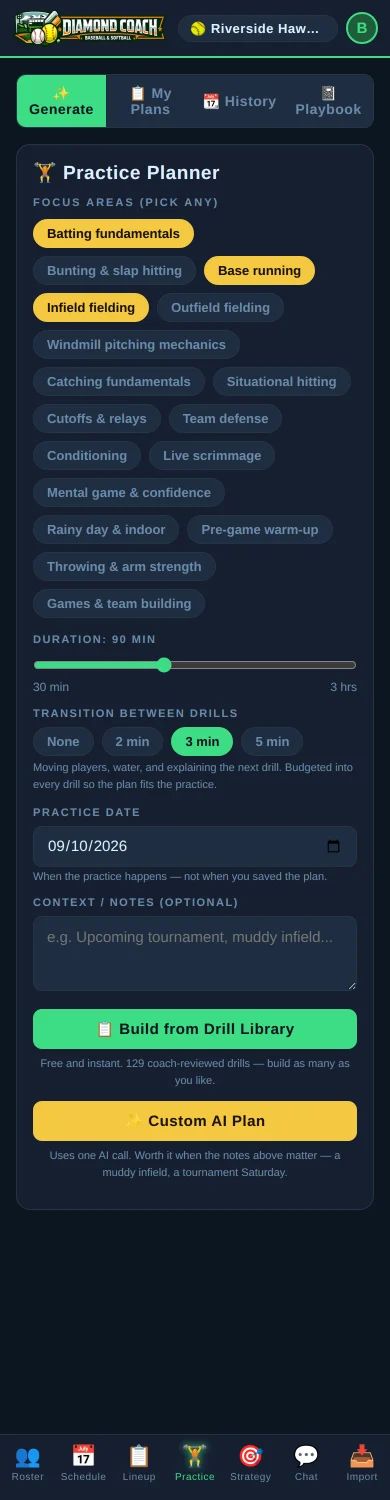
Build from Drill Library is free and instant: 129 coach-reviewed drills, assembled into warm-up, skill sections, and a finish. Press it again to shuffle another plan. Custom AI Plan uses one AI call and is worth it when the notes matter (a muddy infield, a tournament Saturday).
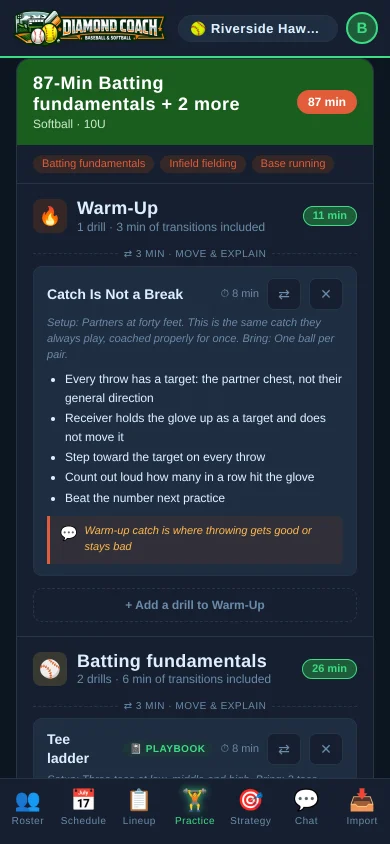
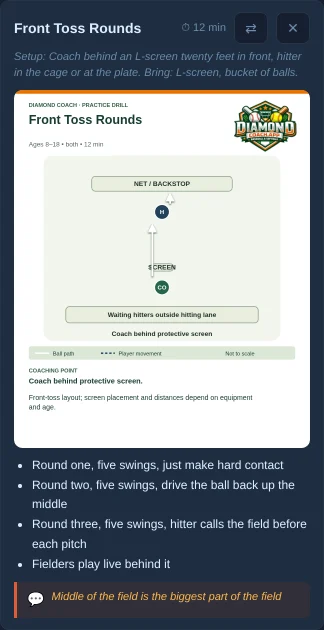
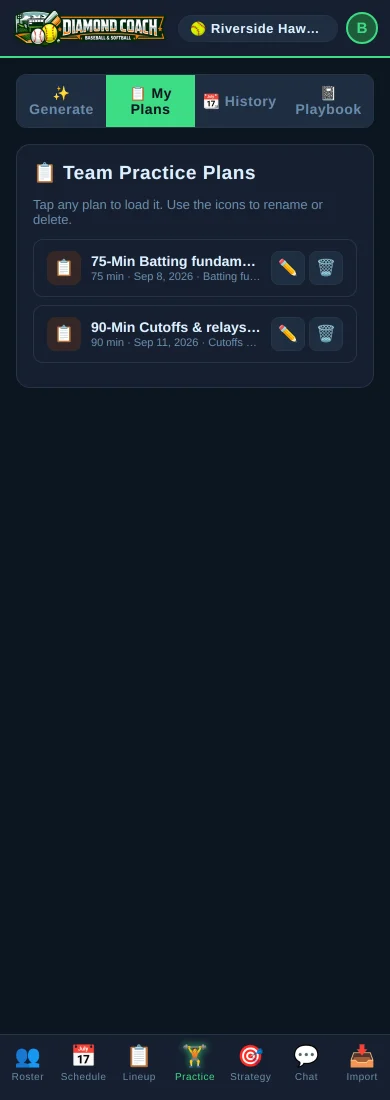
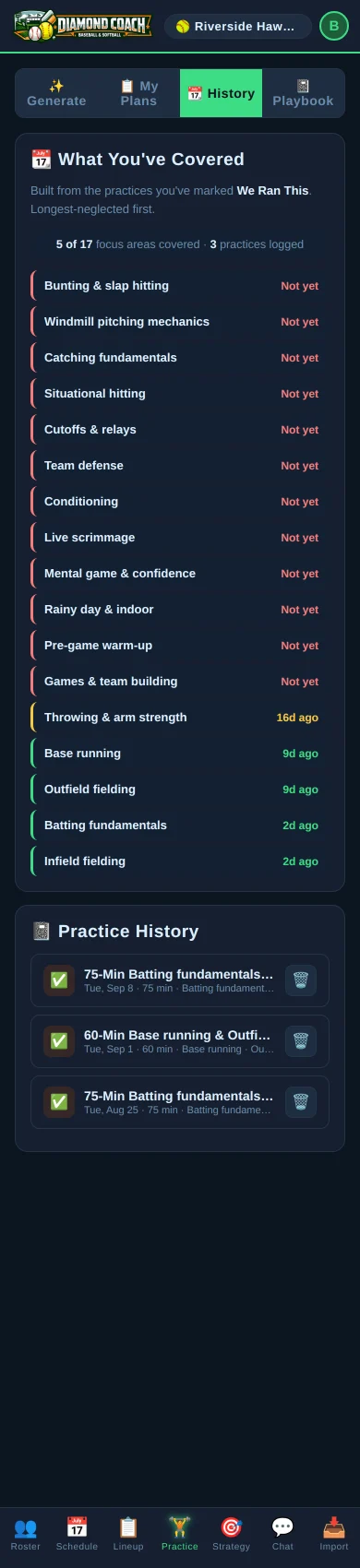
Under the plan: 💾 Save keeps it under My Plans, ✅ We Ran This logs it to History, 🖨️ Print opens a clean sheet, 📤 Share sends it as text.
7. Your Playbook
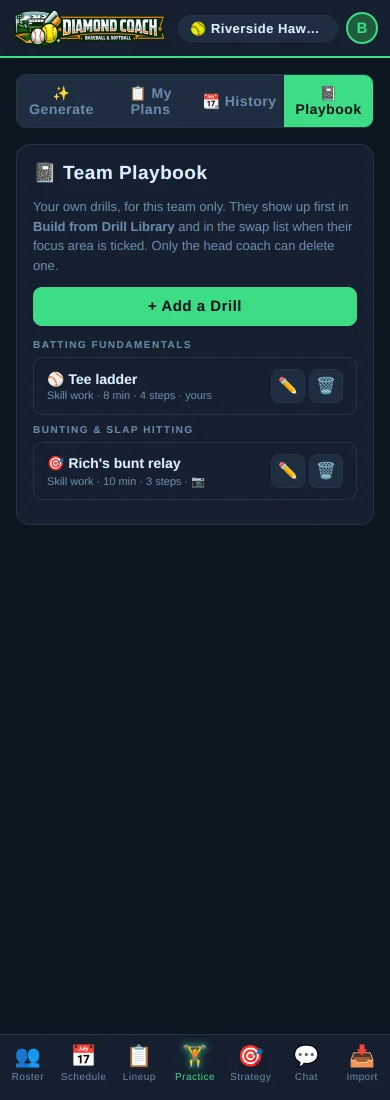
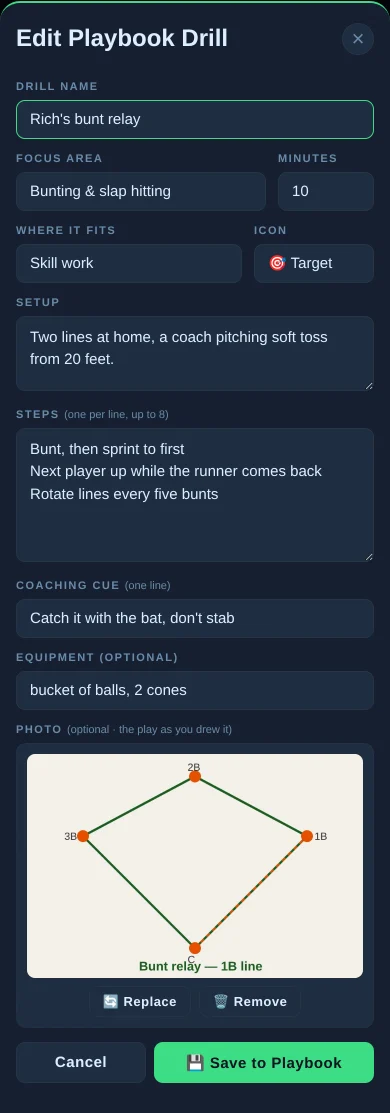
Photo. Attach the play as you drew it on the whiteboard or the cone layout. Photos are resized on your phone before upload and location data is dropped. Photos are part of the paid plan; text drills are free. Every coach on the team can add and edit; only the head coach deletes.
8. Schedule and announcements
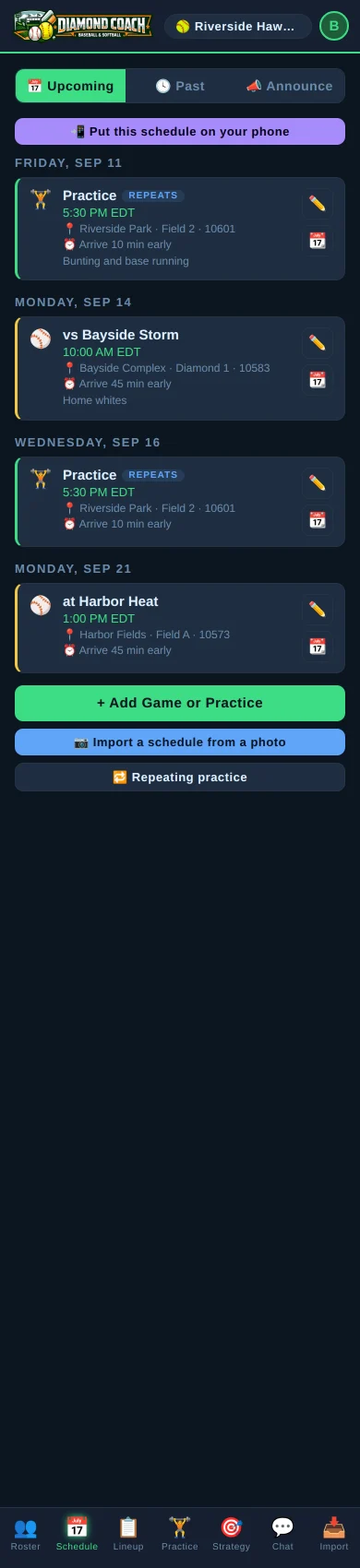
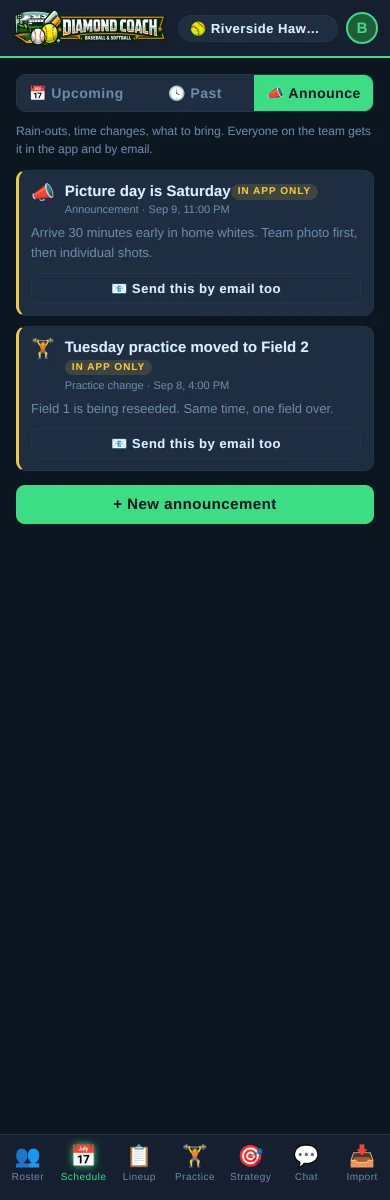
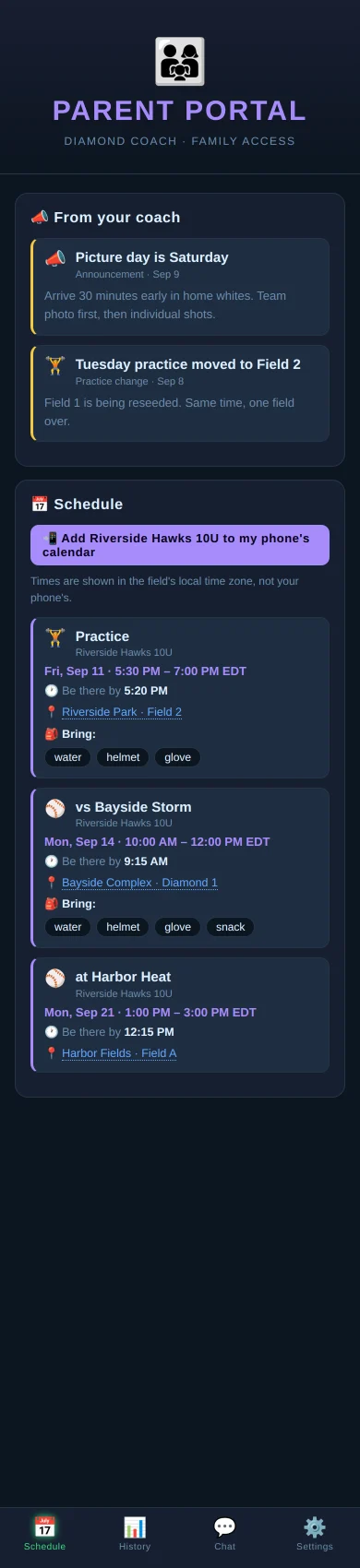
Put this schedule on your phone subscribes your phone's calendar to the team. Every parent gets the same button. Times are shown in the field's time zone.
Announce. Rain-outs, time changes, what to bring. Everyone on the team gets it in the app and by email.
9. In-game Strategy
10. Team chat
11. Import & share
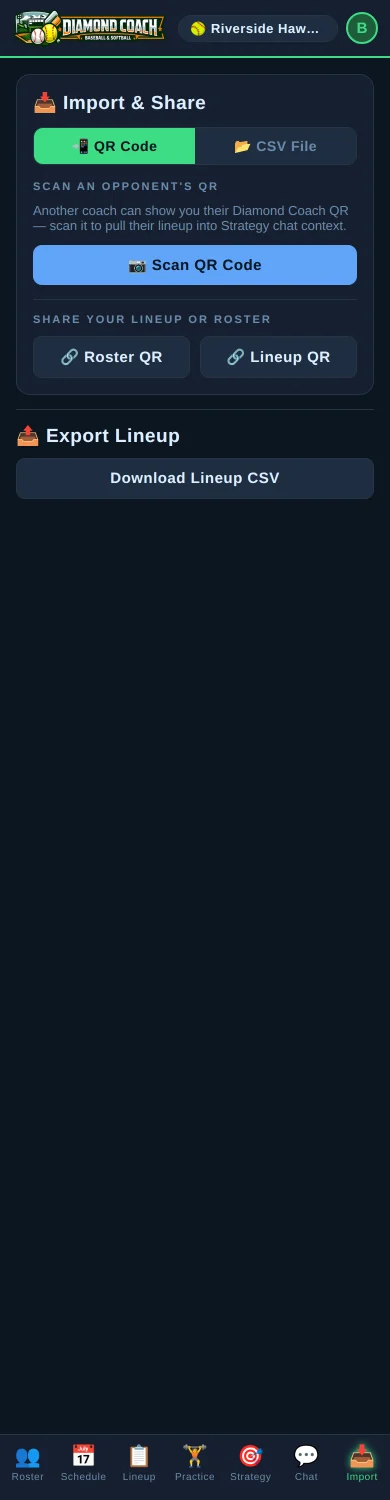
CSV File. GameChanger roster or stats exports, as described under GameChanger stats. Export Lineup downloads your batting order and positions as a CSV.
12. Your account and team
13. Parent portal
Parents do not see the coach's app. They get their own portal with four tabs.

History. Each child, every team they are on, and their Season History: one line per closed season with the counts behind every rate, and a Career line summed from them. This record belongs to the family and follows the player across teams and coaches. 📤 Share record sends it as text (to a private coach or a new team); 🖨️ Print opens a clean sheet.

app@diamondcoach.app to your contacts so a rain-out never lands in junk), and per child whether stats are shared with future coaches.
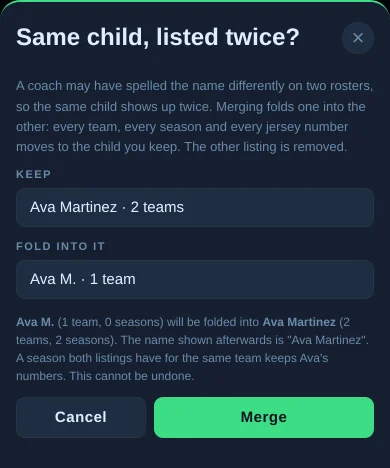
Same child listed twice? If a coach spelled the name differently on two rosters, the same child can appear twice. Merge two listings folds one into the other: every team, season, and jersey number lands on the child you keep. It cannot be undone, so read the summary first.
Delete Account removes your account, your child's profile, and their history for good. The coach keeps their own roster; nothing of yours stays behind.
14. Questions we get asked
I never got the invite or sign-in email.
Check junk for app@diamondcoach.app and add it to your contacts. On iPhone Mail, open one of our emails, tap the sender, then Add to Contacts. In Gmail, mark it Not spam. Still nothing after five minutes? Ask your coach to resend the invite; a new link replaces the old one.
Do players get accounts?
No. Coaches and parents have accounts. Players are on the roster, never signed in.
A parent sees two versions of their child.
Two rosters, two spellings ("Maddie" and "Madelyn"). The parent fixes it themselves under Settings with Merge two listings. Coaches cannot merge from their side, by design.
How many AI calls do I get?
Every account starts with a small trial allowance; founding coaches have a larger one. A practice plan from the drill library never uses one. The app shows how many you have left before the last one. There is also a daily ceiling so a runaway loop cannot spend a season's worth in an afternoon.
Does the app work at the field with no signal?
Once it has loaded, the current screen keeps working and your edits are saved as soon as you are back online. Loading a new team or importing a file needs a connection.
What does GameChanger have that this does not?
Live scoring and video. Keep using GameChanger for game day. Diamond Coach imports its stats and does the rest of the week: fair rotation, practice, development, the family record.
Who owns the data?
A child's season history belongs to the family, not the team or the coach. Coach notes and development ratings belong to the coach and are never shown to families. Everything can be deleted from inside the app. See the Privacy Policy.
Something is wrong.
Email support@diamondcoach.app with the team name and what you tapped. A screenshot helps.